The Basic Steps to Learning How to Use a Computer
Learning to use a computer for the first time can be a daunting process, but it doesn't have to be. Understanding the basics of a computer will help to take the fear out of it. The best way to learn how to operate a computer is simply to get in front of the monitor and use the mouse and keyboard. The more you use the computer, the easier it will become. Before you know it, you will be opening, saving and closing files without thinking about what you are doing.
Step 1
Familiarize yourself with the hardware. Every computer is going to have a display. If it's separate from the computer it is called a monitor; if it is attached it is a screen. All computers have a keyboard for inputting information as well as a mouse or touch pad for navigation. Computers will also have a shell that connects everything together. Most computers today also have an optical drive that can read DVDs or CDs and allows you to install programs onto your computer.

Step 2
Power up the computer. The computer will boot into Microsoft Windows, if that is your operating system, automatically. Use the mouse to move the cursor around on the screen and familiarize yourself with what each of the computer icons do when you do a quick double-click on one of them. Click the "Start" button on the lower left corner of the computer screen.

Step 3
Navigate through the different areas of the computer. Look mainly at "Programs," this is the bulk of where everything you can run on your computer rests. Opening programs and clicking on "Help" from inside the program will give you more information about what it is capable of doing. Open "Internet Explorer" to begin looking around the Internet. This is your gateway to the rest of the world and its information.
How to turn on a computer
Turning on your computer isn’t always easy. Some manufacturers hide the ‘on’ button – for instance, on top of the case or flat on the front where you can’t see it. When you get your computer, don’t be embarrassed to ask: ‘Where’s the “on” button?’
Follow these step-by-step instructions to help you turn on your computer
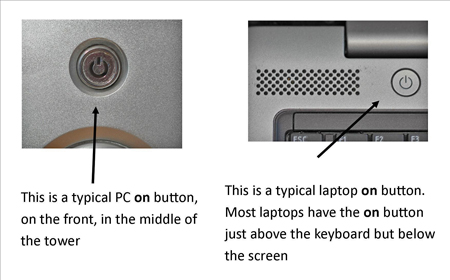
Step 1: Find the ‘on’ button. It probably looks like this (but might be square or oblong!):
Step 2: Push the button.
On some computers, the button lights up when the computer is on. On laptops, there’s often a light on the front that comes on. You may have to keep pushing for a couple of seconds to make this happen, but don’t worry – you’ll soon get to know how your computer works.
If nothing happens, there are a few things you can check easily:
- If you’re using a laptop, the battery might be flat. So plug in the charger, plug the charger into the mains and let the laptop recharge. You can continue to use it while it’s doing this.
- If you have a PC, make sure that the plug or any of the other wires haven’t become disconnected.
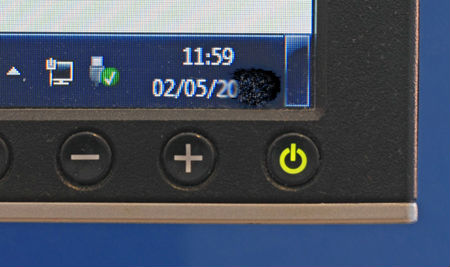
- Ensure that the monitor is turned on. Most PC monitors have an ‘on/off’ button on the bottom corner of the screen (see below). The button often lights up green when the monitor is on.
Step 3: Now you need to log in.
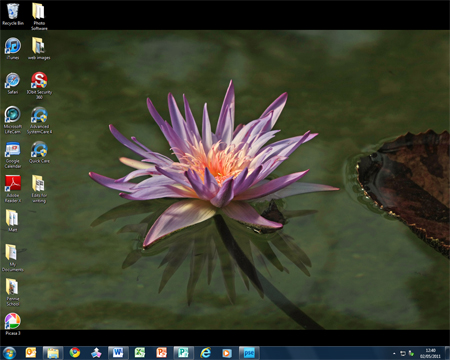
If you’re the only user of your computer, once it’s turned on it may go straight to the desktop:
If you’re using a public computer – for example, in a library – you’ll be given instructions (and help if you ask for it) on how to log in.
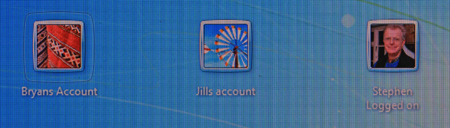
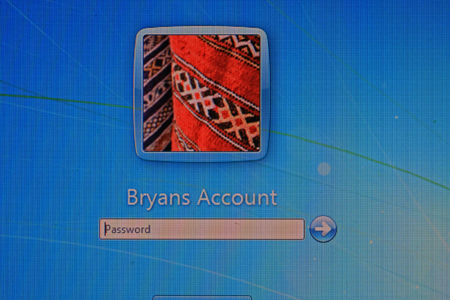
If you’re sharing your computer with other people, each one will usually have their own account. When you turn on the computer, the screen will look something like this:
When you click the icon above your name, you’ll be asked for a password. The main user or administrator should set this up for you before you begin. Type in your password and click the arrow.
Done!
Top tip: surge protectors
If you have a PC, it’s a good idea to buy a ‘surge protector’. This prevents your computer being damaged if there’s a sudden problem with your electricity supply. You can buy surge protectors that let you plug all your separate pieces of equipment into them, in addition to your computer. Then when you turn your computer on or off, this automatically turns them on or off, too.

No comments:
Post a Comment